Video Effects for Shorts: Zoom, Grade, Speed and More
Published October 28, 2026 · 6 min read
Every video effect in the AI Shorts generator with its exact limits: zoom, color grade, speed ramping, freeze frames, shake, finish, fade, waveform and the five presets.
Where the effects live
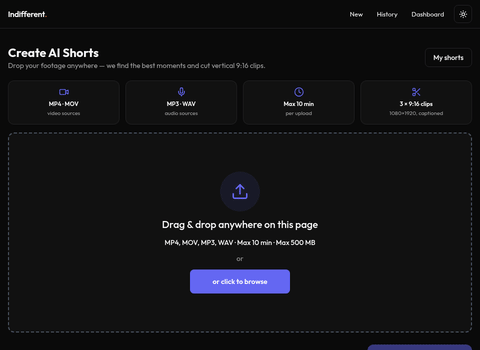
After you upload a file to the AI Shorts generator, and before processing starts, an effects step lets you add motion and color to every clip the job produces. This guide covers each effect, the exact range of every control, and the five one-click presets. The effects are applied by the render servers with ffmpeg, so they are burned into the finished file. For how the clips are chosen and framed in the first place, see how AI video clipping works.
Zoom punch-ins
Zoom pushes in on the frame at times you choose, then eases back out. Intensity runs from 0 to 100, where 100 is a peak zoom of 1.5x. Each push-in is a punch-in with a start time and a duration from 0.5 to 6 seconds. You can place up to 10 punch-ins on one clip, and they cannot overlap. Use a short, strong punch-in to mark a reaction, or one long, gentle one across a whole clip for a slow creep.
Color grade
The grade applies one of four looks over the whole clip, scaled by an intensity from 0 to 100. The looks are cinematic, warm, cool and high-contrast. Intensity is a blend: 0 is the untouched picture and 100 is the full look, so a mid value keeps skin tones natural while still setting a mood. Cinematic is the one the presets reach for most.
The four grade looks
Look
What it does
Cinematic
Teal shadows and warmer highlights, the usual film tone.
Warm
Pushes the whole picture toward amber.
Cool
Pushes the whole picture toward blue.
High-contrast
Deepens blacks and lifts highlights for a punchier image.
Speed ramping
Speed changes playback over windows you set: slow motion below 1.0x, fast motion above it. Each window has a start, a duration of at least 0.3 seconds, and a rate from 0.25x to 4.0x. Outside a window the clip plays at normal speed. You can set up to 5 windows, and they cannot overlap. The audio is retimed with the picture, so a slow window drops the pitch and a fast one raises it, the same as pulling a clip's speed in an editor.
Freeze frames and impact text
A freeze holds a single frame still while the audio goes silent, then the rest of the clip carries on, moved later by the length of the hold. Each hold is from 0.2 to 3 seconds, you can place up to 5 on a clip, and together they can add at most 10 seconds. Holds must sit at least 0.1 seconds apart.
Impact text is one short line drawn over the clip, the kind of word that lands on a freeze. It is at most 16 characters on a single line, shows for 0.3 to 4 seconds, and you can add up to 5 lines that do not overlap in time. The freeze effect's intensity sets how large the impact text is drawn.
Camera shake
Shake moves the frame around over windows you choose, for a hit of energy on a beat or a punchline. Intensity from 0 to 100 sets how far the frame travels. The picture is scaled up slightly first so the movement never exposes a black edge, which is why strong shake is still safe. Each window lasts 0.2 to 6 seconds, you can set up to 10, and they cannot overlap.
Finish: grain, glow and light leaks
The finish effect layers three film looks over the whole clip, each with its own strength from 0 to 100. Set any one to 0 to turn it off, so one finish can carry any mix of the three. An enabled finish needs at least one of them above 0.
Grain adds fine film noise, strongest in the shadows.
Glow softens and blooms the highlights for a dreamy feel.
Light leak washes a warm streak across the frame, like light catching an old lens.
Fade in and out
Fade eases the clip up from black at the start and down to black at the end. Each side is a duration from 0 to 2 seconds, and setting a side to 0 turns that side off; an enabled fade needs at least one side above 0. The fade covers the finished picture, captions and impact text included, and the audio fades with it. This is a per-clip fade, not a cross-clip transition: each short is its own file, so there is nothing to dissolve between.
Audio waveform
The waveform draws an audio visualizer onto the clip, in a waves or bars style, in a color you pick, at the top, middle or bottom. Its height is 10 to 50 percent of the frame. It reads the clip's final audio after any speed retiming, so the bars track exactly what a viewer hears. It suits a clip that is carried by the talking rather than the picture.
Animated captions
The effects step also has an animated captions switch that highlights each word as it is spoken, with controls the caption presets in the gallery do not have. It is covered in full in how to add animated captions to shorts, including the size trap on long words and the contrast table for readable colors.
The five presets
A preset is a named combination of the effects above. Applying one fills the panel with that combination, and you can then change any control before you save. Presets are a convenience only: the server validates and renders whatever effect set it receives, so a preset can never produce anything the panel could not.
What each preset turns on
Preset
Turns on
Viral Captions
Animated captions with two subtle zoom punch-ins.
Podcast Pro
Captions, a stronger zoom and one line of impact text.
Cinematic Story
Cinematic grade, a slow five-second zoom, grain and glow, and a gentle fade.
Motivation
Bold larger captions, a strong zoom and a cinematic grade.
Meme Mode
A short freeze and two lines of impact text.
A few rules worth remembering
All times are seconds measured from the start of the clip, and a clip is 30 to 90 seconds long.
Windows of the same effect, punch-ins, speed windows, shake windows and impact texts, cannot overlap each other.
Freeze and speed cannot both be on for one clip.
Effects are burned in and cannot be changed after a clip has rendered.