Word-by-word captions from transcript timestamps: the four presets, the animated captions effect, colours, safe positions and Hindi text.
Where the words and timings come from
Captions start as a transcript. Amazon Transcribe returns every word with a start time and an end time, and the AI Shorts generator groups those words into cues of up to four words or about two and a half seconds, whichever limit is reached first. The same transcript is what the ranking model reads, as how AI video clipping works explains. Short cues stay on screen long enough to read and change fast enough to follow the speech.
The captions are burned into the video. They are part of the picture, not a separate track, so they look the same on every platform and viewers cannot turn them off. The price is that a finished file cannot be edited, and a finished job is not rendered again. Set the look before processing starts, or upload the file again to try a different one.
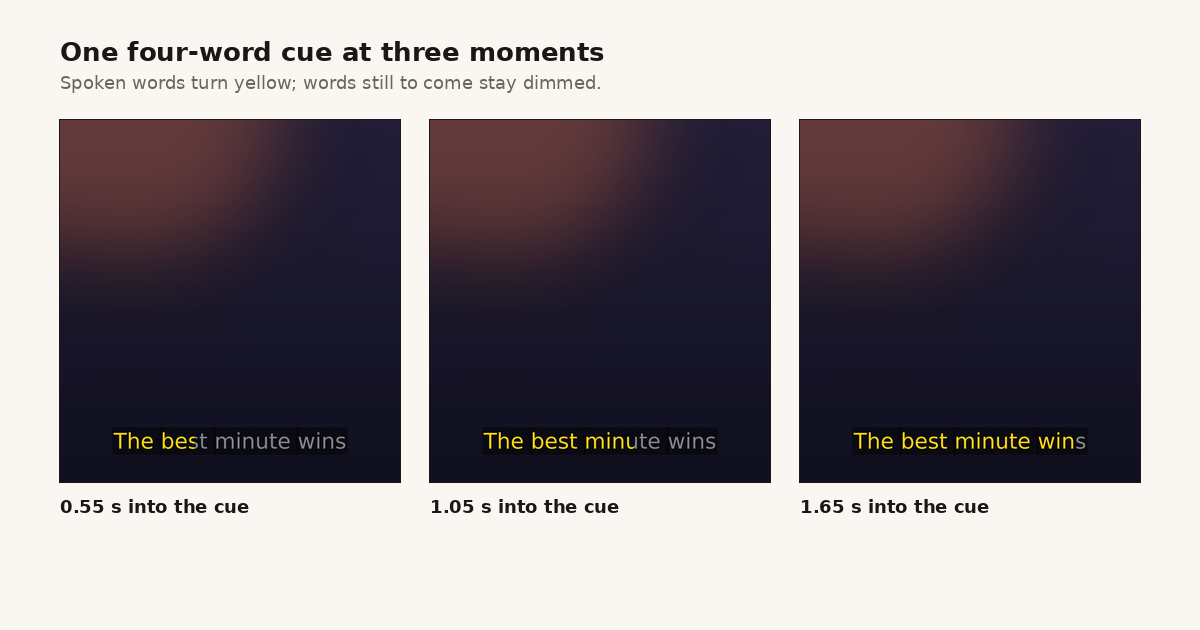
One four-word cue rendered by the animated captions code at 0.55, 1.05 and 1.65 seconds. The sample uses size 12.
Two ways to style captions
The caption presets
The caption panel in the Shorts gallery has four presets: Minimal, Bold, Karaoke and Clean. It also sets the size, the text color, the highlight color and the position (top, middle or bottom). The panel saves the style on the job, and a saved style is used the next time the job renders, including a retry after a failure. Once a job has finished, the panel is read-only. Bold is the default, and Karaoke highlights each word as it is spoken.
The animated captions effect, before processing starts
After an upload, and before processing begins, the effects step has an Animated captions switch. It also highlights words as they are spoken, and it adds controls the presets do not have:
Dim unspoken words, from 0 (solid) to 100 (invisible). Words keep the dimmed look until the highlight reaches them.
Font: sans, serif or condensed, all from the DejaVu family.
Size from 8 to 72, outline from 0 to 12 pixels, and a background box that is none, dark or light.
A text color, a highlight color and a position of top, middle or bottom.
While the effect is on it replaces the caption style for that job, so the two never draw over each other.
Choose colors that stay readable
Contrast decides whether a caption can be read. Here are the WCAG contrast ratios for the default text color (white) and the default highlight (yellow, #FFD60A) on four flat backgrounds. 4.5:1 is the usual minimum for body text.
Contrast ratios for caption colors on flat backgrounds
Background
White #FFFFFF
Yellow #FFD60A
Black #000000
21.0:1
14.9:1
Dark gray #404040
10.4:1
7.3:1
Mid gray #808080
3.9:1
2.8:1
Light gray #C0C0C0
1.8:1
1.3:1
Real footage is not flat, and a bright shirt or a window can sit right behind the words. That is why the dark background box (the default) and the outline matter. With the box on, the text sits on near-black wherever the picture goes. Turn the box off only when the footage behind the captions is dark throughout, and keep an outline.
Keep captions clear of the app interface
YouTube, Instagram and TikTok draw buttons, titles and progress bars on top of a vertical video, mostly along the bottom edge and the right side. The default caption position is the bottom. If the app covers your captions in its preview, switch to middle. Open the clip in the app on your phone before you publish.
Hindi and other languages
Choose Hindi on the upload page and the transcript comes back in Devanagari. The render servers have the Noto Sans Devanagari font installed, so the letters are drawn instead of showing as empty boxes. We checked the same approach on a development machine by rendering a Hindi cue through the animated captions code with the DejaVu Sans style: the glyphs came from a Devanagari font and the highlight swept across the word as expected.
The transcript languages are English (US), English (India) and Hindi. Other languages and scripts are not supported. A job is transcribed in one language, so a conversation that switches between two languages may come out wrong in places. Pick the language most of it uses and read the captions of each clip before you publish.
Check the transcript for mistakes
Transcripts are good, not perfect. Names, product terms and numbers are the usual misses. Play each clip and read along before you publish. The captions are part of the picture, so a wrong word cannot be fixed in the downloaded file.
The Edit panel in the gallery can store corrected words and new start and end times on a job. Those changes are used only when the job renders again, which today means a retry after a failure, and a finished job is not rendered again. If a clip has a wrong word you cannot live with, use another of the three clips.
A checklist before you export
The language matches the speech.
No cue runs past the edge of the frame at the size you chose.
Text and highlight colors are at least 4.5:1 against the box or the footage behind them.
Captions sit clear of the platform's buttons in the phone preview.
Names and numbers have been checked against what was said.