Shorts
How to Turn a Podcast into YouTube Shorts
Prepare an episode, upload it, pick the right language and review three ranked clips. A practical workflow with limits, file-size maths and fixes.
What you end up with
Check the limits first
| Limit | Value |
|---|---|
| Length per upload | 1 hour |
| File size per upload | 2 GB |
| File types | MP4, MOV, MP3 or WAV |
| Clips per upload | Up to 3 |
| Clip length | 30 to 90 seconds |
| Output | 1080×1920 MP4, H.264 and AAC, 30 fps |
| Transcript languages | Auto-detect, English (US), English (India), Hindi |
Prepare the file
Estimate the size before you upload
megabits per second × 3600 ÷ 8 = megabytes.
| One hour of | Approximate size | Fits in 2 GB? |
|---|---|---|
| MP3 at 128 kbit/s | 58 MB | Yes |
| WAV, 44.1 kHz, 16-bit stereo | 635 MB | Yes |
| 720p video at 3 Mbit/s | 1.35 GB | Yes |
| 1080p video at 8 Mbit/s | 3.6 GB | No, shrink it first |
Episodes longer than one hour
Split an MP3 at the one-hour mark
# the first hour
ffmpeg -i episode.mp3 -t 3600 -c copy part1.mp3

# everything after the first hour
ffmpeg -ss 3600 -i episode.mp3 -c copy part2.mp3Video files over 2 GB
Shrink a video to 720p
ffmpeg -i episode.mp4 -vf scale=-2:720 -c:v libx264 -crf 28 -preset medium -c:a aac -b:a 128k episode-720p.mp4Keep only the audio, as MP3
ffmpeg -i episode.mp4 -vn -c:a libmp3lame -b:a 128k episode.mp3Upload and pick a language
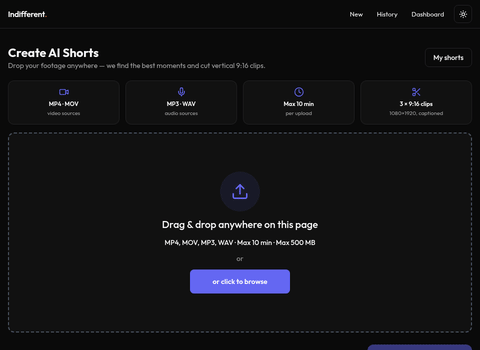
Open Create AI Shorts and drop the file on the page, or choose it from the file picker. Choose the transcript language. Auto-detect picks between English (US), English (India) and Hindi. If you know the language, choose it yourself. A job is transcribed in one language, so pick the one most of the episode uses. Start the upload. Files over 16 MB are sent in 16 MB parts, several at a time. If the connection drops, only the parts that failed are sent again. After a page reload, choose the same file and press Resume upload to continue from the last finished part. When the upload finishes, a short step lets you switch on video effects such as animated captions. Leave everything off to use the defaults, then press Start processing.
What happens while you wait
Review the three clips
Play each clip with the sound on. The first two seconds should make sense to someone who has not heard the rest of the episode. Read the captions as the clip plays. Names, numbers and product terms are the usual transcript misses. Check that the captions are easy to read on a phone. They are burned in, so a look you dislike means uploading the file again with different effects. Download clips one at a time, or select several and download a zip.
Pick what to publish
When something goes wrong
| What you see | Likely cause | What to do |
|---|---|---|
| The page says the file is too long or too large | The episode is over 1 hour or 2 GB | Split or shrink the file with the commands above. |
| The job fails with no speech detected | The file is silent or music only, or the language is wrong | Play the file to check the audio, then upload again with the language chosen by hand. |
| Hindi speech comes out as English words | Auto-detect chose another language | Upload again with Hindi selected. |
| The upload stops partway | The network dropped | Reload, choose the same file and press Resume upload. |
| The job failed | A server step failed | Press Retry on the progress page. A problem with your file, such as no speech or a file that is too long, will fail again until you fix the file. |
| A clip starts or ends mid-sentence | Moments are picked from 10 second blocks of text and snapped to the nearest word, not the nearest sentence | Use another of the three clips, or download this one and trim it in a video editor. |