Watermark
How to Add a Watermark to an Image in Your Browser
Step-by-step guide to text and logo watermarks in the free in-browser tool: formats, opacity, placement, export options, privacy and troubleshooting.
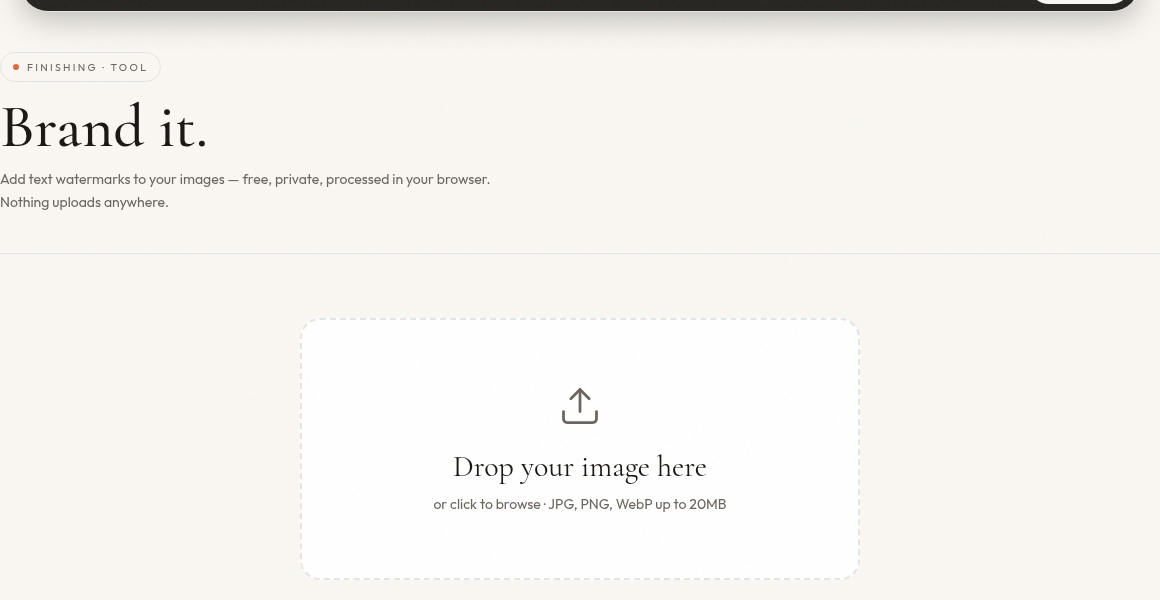
What the tool does, and what stays on your device
Add a watermark in five steps
Open the tool and drop a file on the page, or choose one. Images can be JPG, PNG or WebP. Videos can be MP4, WebM or MOV. Choose the Type: Text or Logo. For text, type the words and pick one of ten fonts. For a logo, choose an image file. A PNG with a transparent background gives the cleanest result. Set the look. Opacity starts at 50 percent and size at 25 percent of the frame width. Color has six presets plus a picker, and Rotation turns the mark. Place it. Drag the watermark on the preview, or press one of the nine positions in the Position grid to snap it to a corner, an edge or the center. Export. For an image, choose PNG or JPEG and download. For a video, start the export and wait for the progress bar to finish. A video always comes out as an MP4, whatever format it went in as.
Placement and opacity
A mark in the corner is easy to crop off. A mark over the subject is hard to remove without leaving damage, but it also gets in the way of the picture. Pick the trade-off on purpose. Start with opacity near 40 to 60 percent. Lower than that vanishes on busy areas, and solid white or black competes with the photo. Check the mark on both a dark and a light part of the picture. The color presets include white, black, red, yellow, cyan and pink, so there is usually one that reads. For a logo, keep the logo file small and clean. A logo with a white box around it (common with JPG) will show the box on the picture. Rotation of 20 to 40 degrees across a photo is harder to crop out than horizontal text in a corner.
Limits and formats
| Item | Detail |
|---|---|
| Images in | JPG, PNG, WebP |
| Videos in | MP4, WebM, MOV |
| Images out | PNG or JPEG, at the original size |
| Videos out | MP4 with H.264 video and AAC audio |
| Large videos | The tool warns above 500 MB. Rendering a large file can need about 2 GB of free memory. |
| Fonts | Ten system fonts such as Arial, Georgia and Impact |
When something goes wrong
| What you see | Likely cause | What to do |
|---|---|---|
| The first video export is slow to start | The page is downloading the video engine, about 30 MB | Wait for it once. Later exports reuse the cached copy. |
| The video cannot be previewed or played | The browser cannot decode its codec | Convert it to MP4 with H.264 video and AAC audio, then try again. |
| The tab slows down or crashes on a large video | The file is bigger than the memory the browser can spare | Use a shorter or lower-resolution copy, or close other tabs. |
| The logo has a white rectangle around it | The logo file has no transparency | Use a PNG with a transparent background. |
| The mark is hard to see | Opacity is low or the color matches the picture | Raise opacity or choose a contrasting color preset. |
Convert a video to MP4 (H.264 and AAC) with ffmpeg
ffmpeg -i input.mov -c:v libx264 -crf 23 -preset medium -pix_fmt yuv420p -c:a aac -b:a 128k -movflags +faststart output.mp4